How to Make the iPhone You Already Own Kosher
You do not need a new phone. The iPhone you already carry can be made kosher and keep your number, photos, contacts and WhatsApp chats. Decide the standard, back the phone up, list the apps you truly need, then set it up yourself with Apple's settings or have it set up in person. The decision that matters most is who keeps the key.
Why keeping your own iPhone is usually the better choice
For years, the advice was simple: to have a kosher phone, buy a kosher phone. That still suits some people. But when we read 319 questions and comments from 96 forum and news pages, from 2010 to 2026, one question came up again and again: can I keep the phone I have?
The reasons people gave are practical ones.
- Cost. One woman had "just got a brand new iPhone for free" and could not justify paying for another phone. A phone you already own costs nothing to keep.
- One phone, not two. Many people who buy a flip phone keep the iPhone for work or for travel. One man in Bnei Brak told the Times of Israel: "From a cellular perspective, I lead a double life." A second phone is where good intentions go to leak.
- The things on it. Photos of the children, years of WhatsApp chats, contacts, the bank's app, the home's internet. "We don't have wifi at home so my iPhone serves as the hotspot/ wifi," another woman wrote in May 2026, explaining why she could not simply switch.
- A real keyboard and a real camera. People who switch to a basic phone often complain about small screens and slow typing. Keeping the iPhone keeps the parts that were never the problem.
What changes is not the phone. What changes is what the phone can reach, and who decides that.
Before you start: the preparation list
Whichever way you choose, twenty minutes of preparation saves days of frustration. Do these in order.
The preparation list
- Update the iPhone. Settings, General, Software Update. An up-to-date phone has Apple's newest protection tools and security fixes.
- Back it up. Settings, tap your name, iCloud, iCloud Backup, then Back Up Now. Apple's own guide is in the sources below. If you prefer, back up to a computer instead.
- Back up your WhatsApp chats. In WhatsApp: Settings, Chats, Chat Backup, then Back Up Now. This is separate from the phone's backup, and it is the one people forget.
- Know your Apple Account password. Write it down somewhere safe. You will need it more than once.
- Write your keep list. Every app you truly need, one line each: WhatsApp, maps, the bank, email, the camera, the car service, school apps, work apps. Put a star next to the ones you use daily.
- Write your leave list. The apps and habits you want gone. Be honest: this list is the reason you are doing this.
- Check how your bank signs you in. Many banks text a code to your number. Make sure you know which app and which number.
- Decide who keeps the key. If you set it up yourself, that is whoever holds the Screen Time passcode: a spouse, a parent or a friend, not the person carrying the phone. If a service sets it up, ask who can change the level.
- Ask your school, if it matters. If a school, yeshiva or seminary has phone rules, ask what they accept before you choose anything.
Way one: do it yourself with Apple's settings
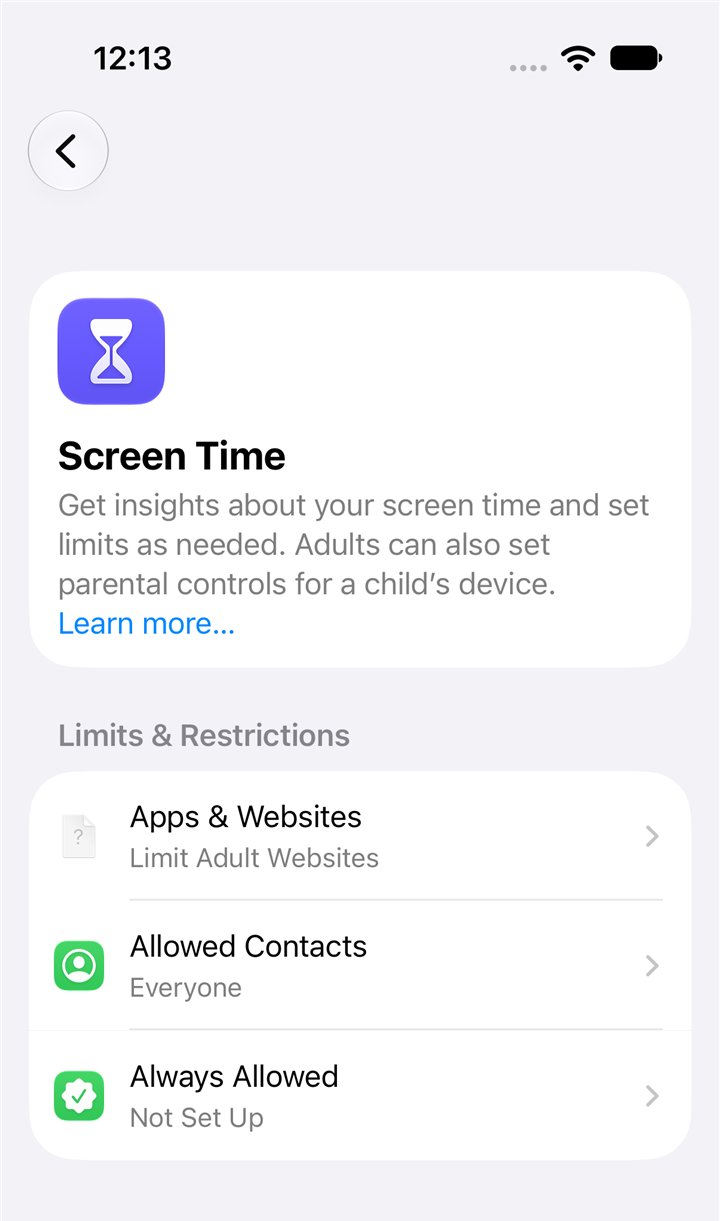
Every iPhone has Screen Time built in. Used well, it can make your own iPhone far more kosher than it is today. The key to using it well is simple: set a Screen Time passcode and give it to someone else. A passcode you know is a lock you can open.
- Turn on Screen Time for your own phone in Settings.
- Turn on Content & Privacy Restrictions. This is where the important settings live.
- Limit websites. Choose to limit adult websites, or, stricter, allow only the websites you list. The stricter choice means every new site you need has to be added by hand.
- Remove what you do not want. Delete the apps on your leave list. Then limit installing new apps, so they cannot quietly come back.
- Turn on Sensitive Content Warning, Apple's setting that blurs photos and videos with nudity or violence sent to you in Messages and some other apps.
- Set a schedule, such as no phone after a certain hour, if time is part of the problem.
- Set the Screen Time passcode, and let someone else type it. Do not watch. Do not write it down for yourself. When the passcode is set, Apple offers a way to reset it later with your own Apple Account; Apple's words are "if you set up this feature". If you want the lock to hold, the person setting it should not tie it to your account.
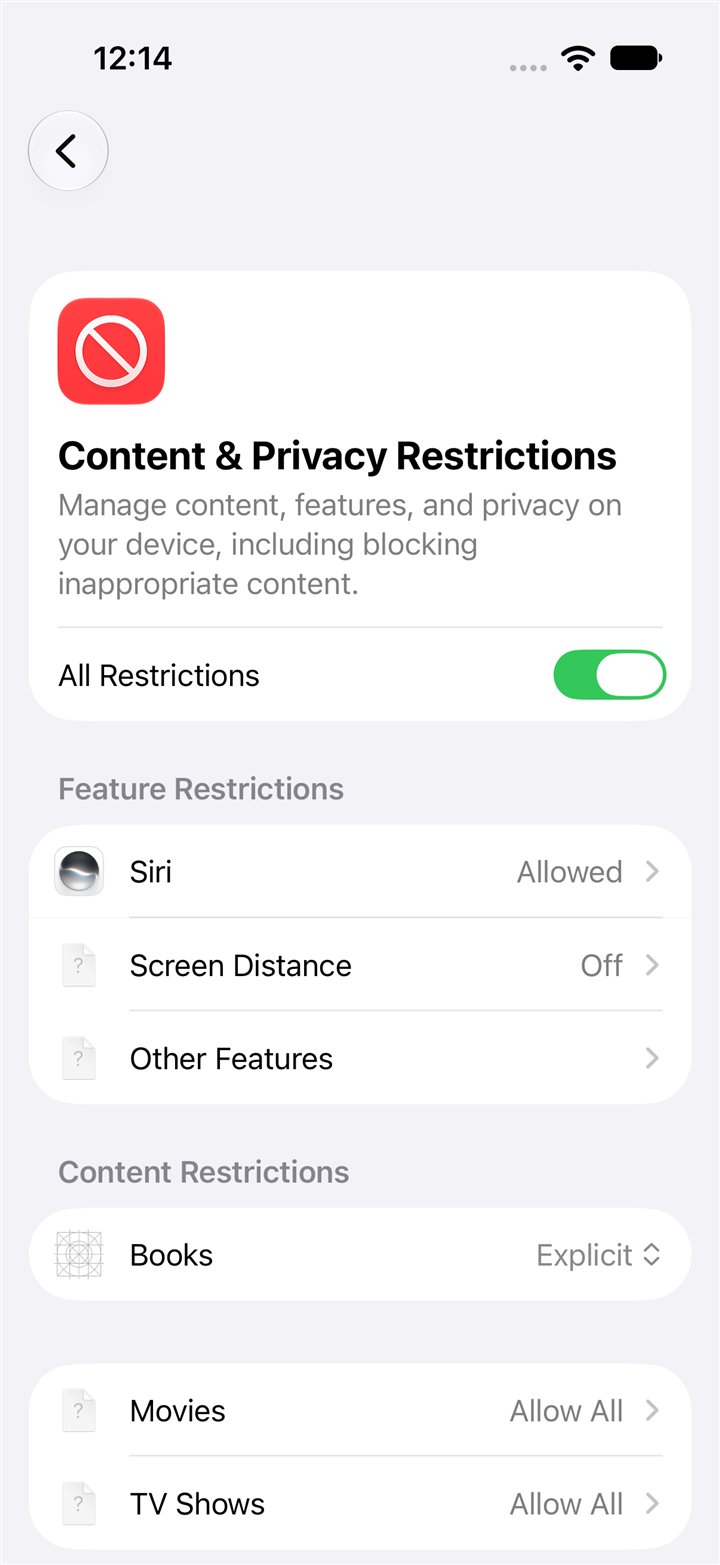
Be honest about the limits. Apple's guide for iOS 26 says that "by default, Screen Time limits can be ignored once reached"; they hold only with a passcode. Screen Time was built mainly for parents managing children. On your own phone, the person who can change it is whoever knows the passcode, and passcodes get shared and reset. Apple does not describe checking the pictures on the sites it lets through. For some people, especially adults who want a quiet push in the right direction, this is enough. For others, the whole point is a standard that holds on the hard days too, and that is what the second way is for.
The camera and YouTube
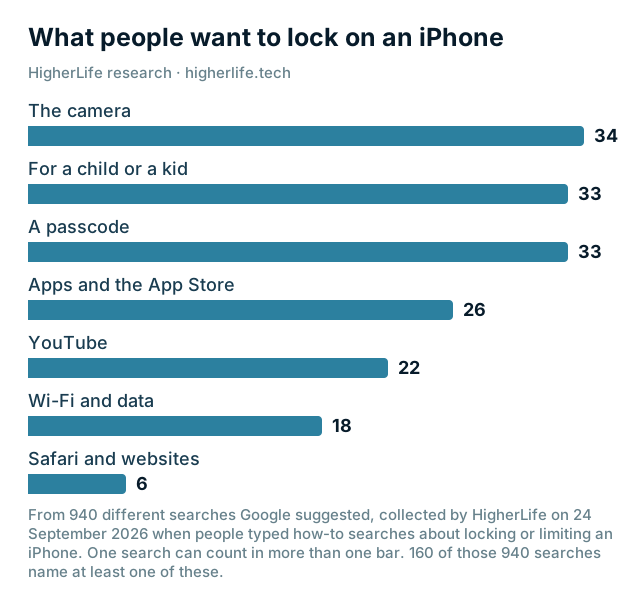
These two come up again and again in what people search when they want to lock an iPhone (the chart above). The same settings cover both.
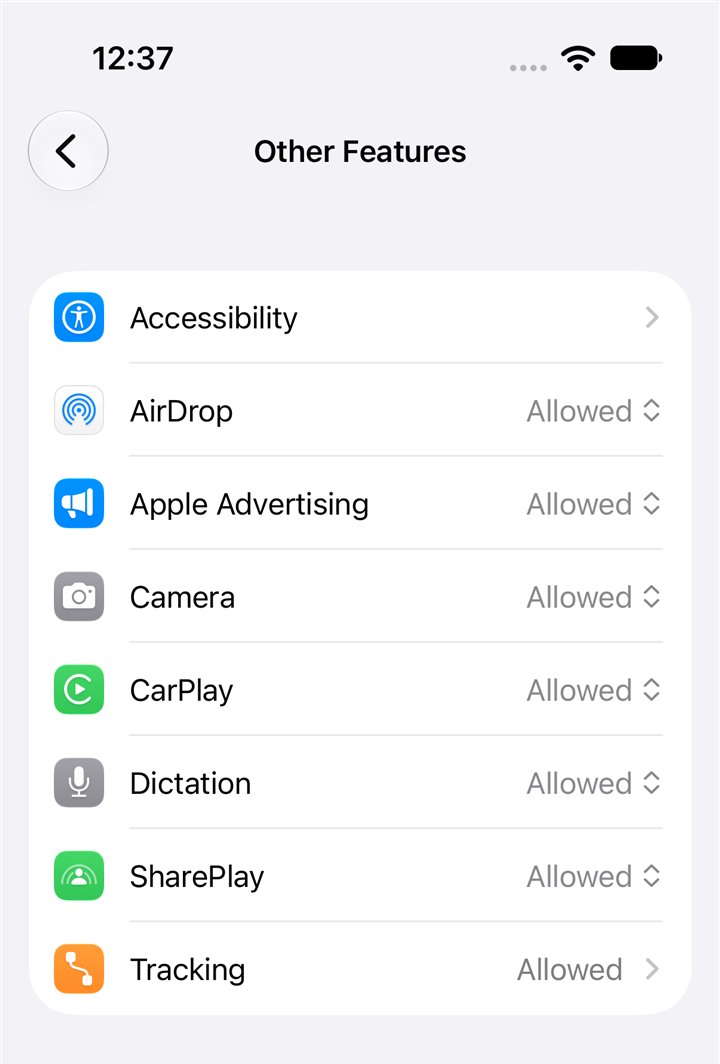
- The camera. Apple's guide for iOS 27: "Tap Screen Time, tap Content & Privacy Restrictions, tap Other Features, then allow or block any of the settings shown, like AirDrop, Camera, and more." Think before you switch it off: it also takes away photos of a document, a receipt or the family.
- YouTube. On an iPhone, YouTube is two things: an app and a website. Delete the app and limit installing new apps (step 4), and the app stays gone. The website is covered by step 3: if you allow only the websites you list, YouTube stays out unless you add it.
For a child's iPhone, Apple's parental controls are stronger, because a parent runs them from their own phone through Family Sharing. Our guide to parental controls walks through them.
Way two: have it set up in person
The second way is to bring the iPhone to a service that sets it up with you and keeps it that way. Done well, it looks like this:
- You bring the phone you already own, backed up.
- You choose the level that fits the person who will carry it, from very focused to fairly open.
- The phone is set up while you wait. You leave with the phone you brought.
- It stays that way. Changes are made by the account holder; for a child's phone, that is the parent.
- When life changes (a child grows up, a new job needs a new app), the account holder changes the level instead of starting over.
Before you book, go through the twelve questions in our guide to trusting a kosher phone. The most important three: who can see what, how you ask for something that is blocked, and what happens to your things if you ever leave.
Day one: the ten-minute test
The first day tells you whether the setup fits your life. Do not wait for the first emergency to find out that the bank's code does not arrive. Sit down with the phone and try each of these, in this order.
| # | Try this | It passes when |
|---|---|---|
| 1 | Call someone, and have them call you back | Both calls connect normally |
| 2 | Send a text with a photo to someone with an iPhone and someone without | Both arrive, and their replies arrive |
| 3 | Send a WhatsApp voice note to a family group | It sends, and you can play the replies |
| 4 | Plan a route in Waze or Google Maps | The route and the voice directions work |
| 5 | Sign in to your bank's app | The security code arrives and you get in |
| 6 | Open your email and one attachment | Both open |
| 7 | Take a photo, then check it reached your backup | It appears in your photo backup |
| 8 | Open the car-service or ride app you use | You can see a car on the map |
| 9 | Open the work or school app you use most | It opens and you can sign in |
| 10 | Open one site you need for school or work | It opens, or you know exactly how to ask for it |
If one of these fails, deal with it on day one, while the setup is fresh and help is easy to ask for. A kosher iPhone that breaks the bank's login is a kosher iPhone that will be removed by the end of the week.
Your number, your texts, and why swapping SIM cards goes wrong
Your number stays exactly where it is. Making your iPhone kosher does not involve your carrier, your plan or your number. Nobody needs to be told anything.
The trouble starts when people try the other route: moving their SIM card back and forth between an iPhone and a basic phone. There are two separate reasons it goes wrong.
- iPhone-to-iPhone messages. When your number is registered with Apple's messaging, other iPhones send you Apple messages instead of ordinary texts. A basic phone cannot receive those. Apple even has a page to take your number off its messaging "if you are now using a non-Apple phone and cannot get SMS or text messages someone sends you from an iPhone."
- The carrier's plan. One woman who tried swapping the same SIM between her smartphone and a flip phone found the flip phone "wouldn't receive texts": she could send, but the replies only came through when the SIM went back into the smartphone. Her carrier told her the plan was different.
This is one of the strongest reasons to keep one phone. If you do want a second phone on the same number, ask your carrier about their feature for ringing two phones on one number, and ask exactly how texts are handled.
Making the change with a teenager
A teenager's iPhone is the hardest case, because it is not your phone and it is not their idea. Parents on the forums describe two fears at once: that the phone will swallow their child, and that a child who feels controlled will simply get a second phone the school does not know about. One mother's son told her that about a quarter of his grade had exactly that.
What families describe as working:
- Talk before you act. Explain what you are protecting and why, in your family's words. Ask what they need the phone for, and take the answer seriously.
- Keep what they really use. The class group, music, maps, the camera. Taking away the harmless things makes the rest feel like punishment.
- Be clear about how to ask for more. A teenager who knows how to ask, and gets an answer, has less reason to go around you.
- Grow it with them. Agree in advance on what will change at 15, at 17, after the first zman. A level that can change is easier to accept than one that never will.
- Hold the same line yourself. Several parents made the point that a rule for the children is hard to defend if the parents do not keep it too.
Our guide to a child's first phone has a family phone agreement you can print and adapt.
When something you need is blocked
It will happen. A school form, a doctor's portal, a new app for work. How a setup handles this moment decides whether it lasts.
- If you did it yourself: ask the person who holds the passcode to add the site or the app. Keep the request specific (one site, one app) rather than asking them to "turn it off for a minute".
- If a service set it up: ask the account holder, or the service, the way they told you to on day one. A good service tells you in plain words how to ask and who decides.
- Either way: notice the pattern. If you keep needing the same kind of site, the level may be wrong for your life, and changing the level is better than a hundred exceptions.
Questions people ask
Will I lose my photos?
No. Making your iPhone kosher changes what the phone can reach, not what is stored on it. Back up first anyway, as you should before any big change.
Will I lose my WhatsApp chats?
No. Your chats stay on your phone. Back them up in WhatsApp first (Settings, Chats, Chat Backup), because the phone's backup and WhatsApp's backup are two different things.
Do I need a new number or a new carrier?
No. Your number, your carrier and your plan stay exactly as they are. Nobody needs to be told anything.
Can I do it myself?
Yes, with Apple's Screen Time. The key is to set a Screen Time passcode and let someone else hold it. Without that, the lock opens whenever you want it to.
Why not just move my SIM card into a flip phone?
You can, but texts from iPhones may stop reaching you until you take your number off Apple's messaging, and some carriers' plans handle texts differently on a basic phone. It also usually means keeping two phones.
Can I still use my phone as a hotspot?
If your home's internet runs through your phone, raise it before you choose any setup, and ask exactly what a connected device can reach.
Can I change my mind later?
You should be able to. Ask any service how the level changes, who decides, and what happens to your things if you ever leave. Anything that was yours before should stay yours.
What if I have an older iPhone?
Update it to the newest iOS it can run. Very old iPhones that can no longer get updates miss Apple's newest protection tools and security fixes, so ask before you plan around one.
Sources
- Apple, How to back up your iPhone or iPad with iCloud: Settings, your name, iCloud, iCloud Backup.
- Apple, Deregister iMessage: for people "now using a non-Apple phone" who "cannot get SMS or text messages someone sends you from an iPhone".
- Apple, Set up parental controls to manage your child's iPhone or iPad (iOS 27).
- Apple, iPhone User Guide (iOS 27), Block features or content with Screen Time on iPhone: "allow or block any of the settings shown, like AirDrop, Camera, and more."
- Apple, Set schedules with Screen Time (iPhone User Guide, iOS 26): "By default, Screen Time limits can be ignored once reached."
- Apple, Create, change, or remove a Screen Time passcode (iPhone User Guide, iOS 27): resetting a self-set passcode with your own Apple Account.
- Apple, About Communication Safety on your child's Apple device, including Sensitive Content Warning for adults.
- Times of Israel, Kosher cellphone bill sparks debate (July 23, 2024).
- Imamother forum, Kosher phone help (June 2022): the cost of a new phone.
- Imamother forum, Need ideas: kosher phone plus iPhone (May 2026): the phone as the home's hotspot.
- Imamother forum, Kosher and smart phone switch (December 2023): texts lost when swapping a SIM card.
- Imamother forum, Phones the yeshiva doesn't know about (September 2022).
- HigherLife research: 319 questions and comments from 96 community forum and news pages, 2010 to 2026, read in September 2026.