iPhone and Android Parental Controls: What They Really Do
Apple's Screen Time and Google's Family Link are good, free tools, and every parent should know them. They approve downloads, limit time, choose contacts and limit adult sites in the main browser. But they are settings, not locks. Apple's iOS 26 guide says limits "can be ignored once reached" by default, and Google says its setting for explicit sites is not perfect. They work best for young children, with a parent holding the passcode.
Two tools, two kinds of phone
Every smartphone comes with parental controls built in. On an iPhone they are called Screen Time, and they are managed through Apple's Family Sharing. On Android they come from Google's Family Link, together with Digital Wellbeing on the phone itself.
The first thing to know surprises many families: the two do not mix. Google says plainly that Family Link cannot manage iPhones, iPads, or computers other than Chromebooks. A parent can run the Family Link app on their own iPhone to look after a child's Android phone, but a child's iPhone is managed with Apple's own tools. If your family has both kinds of phone, plan to learn both.
iPhone: what Screen Time does in iOS 27
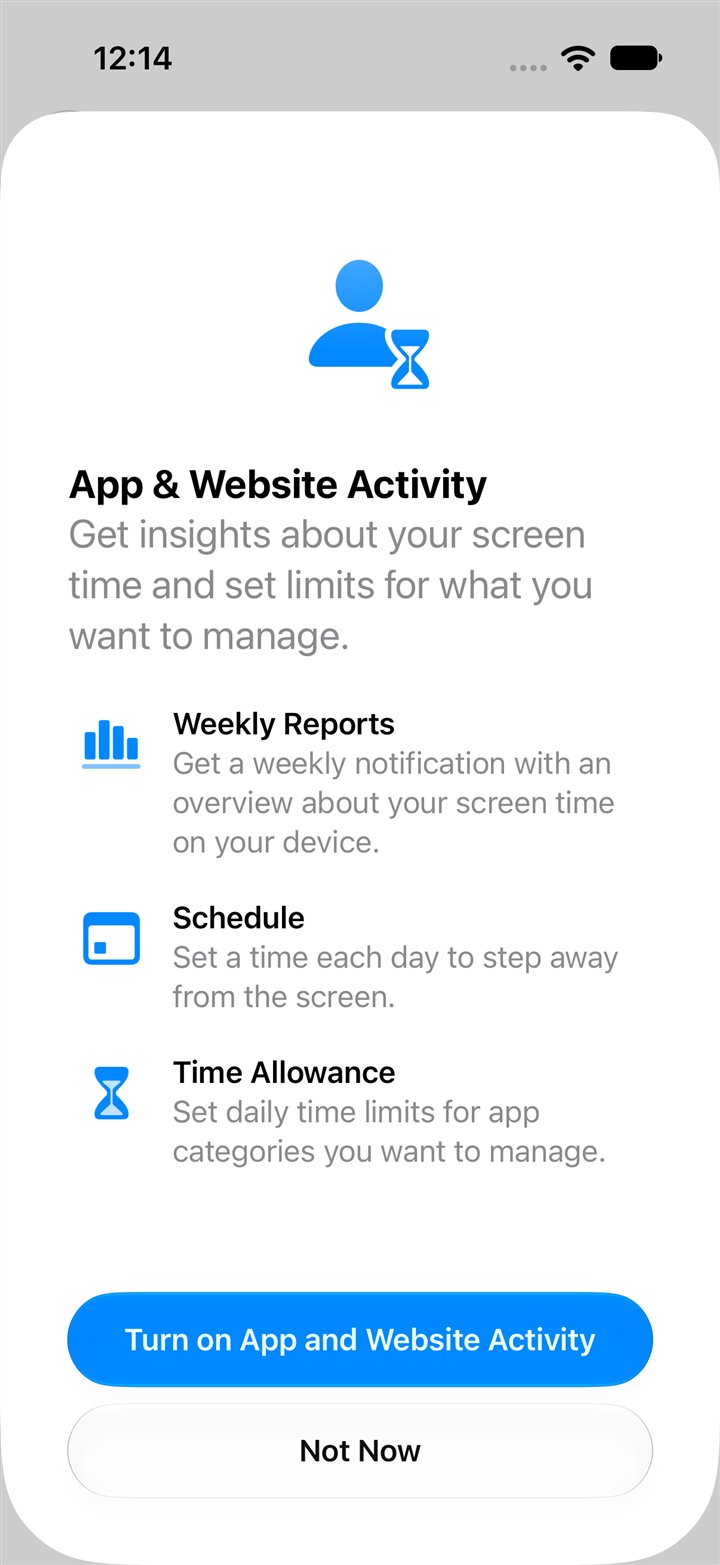
Apple redesigned its parental controls in 2026. In Apple's words, they "are redesigned in version 27 of iOS, iPadOS, macOS, and watchOS, with new quick actions, more flexible schedules and time limits." If you read an older guide, the names will not match: what used to be called Downtime is now Screen Time Schedules, and App Limits are now Time Allowances. On a child's iPhone in Family Sharing, a parent can:
- Choose how the child browses. Apple offers "access to all websites except detected adult websites (Limit Adult Websites), or only allow the websites you approve (Approved Websites Only)." For a child's account, the lighter setting is on by default under 18, and the stricter one under 13.
- Approve every download and purchase with Ask to Buy, on by default for children under 13, and in some places for every child under 18.
- Block or allow single apps and websites. Turning off a built-in app hides it; as Apple puts it, "it isn't deleted; it's temporarily hidden from your Home Screen until you turn it back on."
- Limit content by age rating in apps, music, books, films and TV, and block content labeled explicit.
- Choose who the child can talk to: in Allowed Contacts, turn on Manage Contacts and pick the contacts you approve.
- Set Time Allowances (how long apps can be used each day) and Screen Time Schedules (when they can be used).
- Keep Communication Safety on. When it detects nudity in photos or videos a child sends or receives, "it blurs it and warns them with options to get help." It is on by default for children under 18, and it runs on the child's device: "Apple doesn't receive an indication that sensitive content was detected and doesn't get access to the photos or videos."
- Lock the settings with a Screen Time passcode, a four-digit code separate from the phone's own passcode. Apple: "A Screen Time passcode locks your child's Screen Time settings so they can't change them on their own."
Setting up a child's iPhone, step by step
Apple's own guide lists these settings on the parent's iPhone, under Settings, then Family, then the child's name (iOS 27). Do them in this order.
Screen Time for a child, in order
- Before you start: set up Family Sharing, create the child's account as a Child Account, and update every device in the family to version 27 (iPhone, iPad, Mac and Apple Watch). Apple notes that the new controls need version 27 on every device in the group.
- Apps & Websites, Restrictions: turn on Ask to Buy and require purchase approval.
- Apps & Websites, websites: choose Approved Websites Only for a young child, and add the sites they need. Limit Adult Websites is the lighter choice for older children.
- Apps & Websites, App Store: decide whether the child can install apps at all.
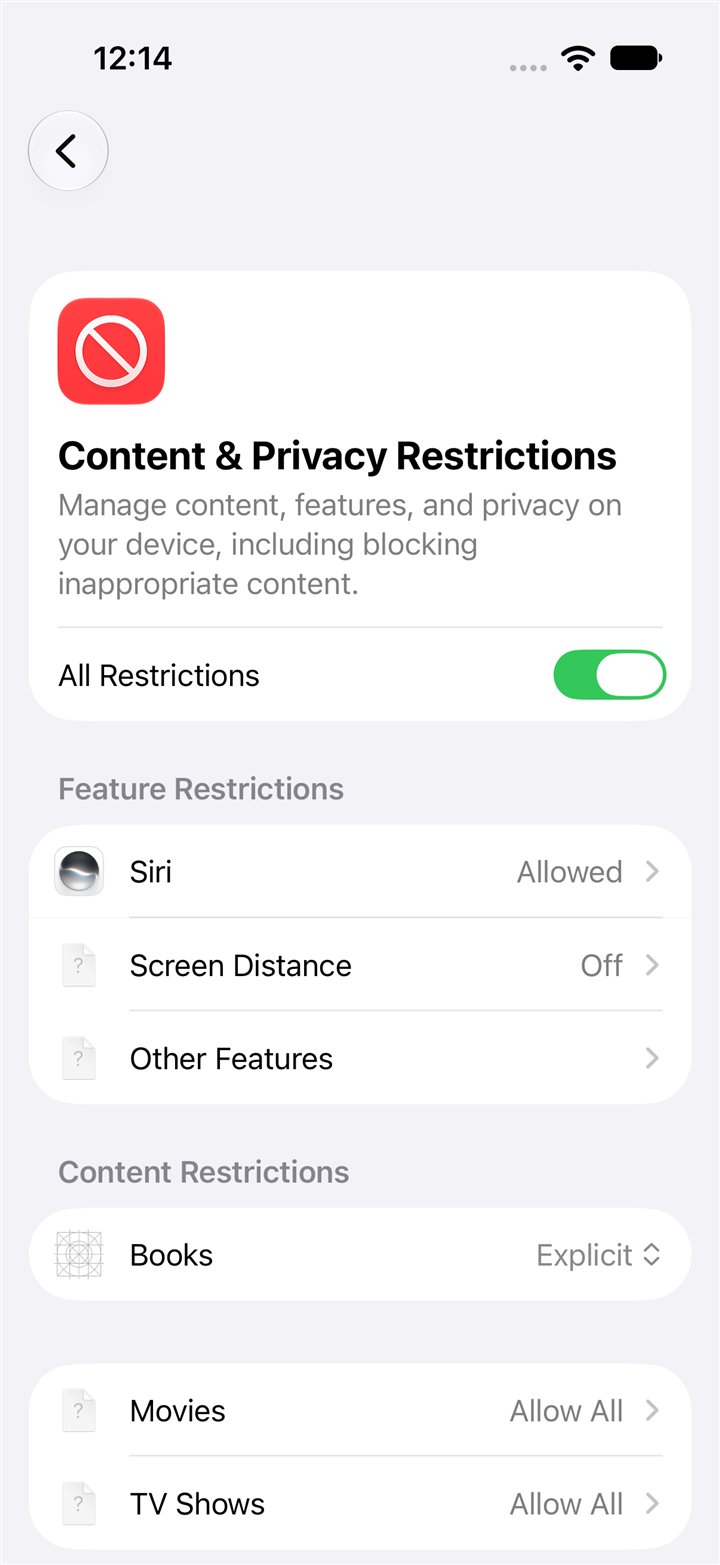
- Content & Privacy Restrictions: set age ratings for apps, music, books, films and TV.
- Allowed Contacts: turn on Manage Contacts and choose the contacts you approve.
- Communication Safety: confirm it is on.
- Time Allowances and Screen Time Schedule: set how long, and when. Nights are the most important hours.
- The Screen Time passcode: set it, and never share it with the child.
- Check it from the child's side: try to open a site you did not approve and install an app. Both should ask you first.
Android: what Family Link does
Google's Family Link lets a parent "create a Google Account for your child under 13 (or the applicable age in your country)," or add parental controls to a child's existing account. From the parent's phone, a parent can:
- Control apps: "Decide which apps your child can download or purchase, block or allow apps, and change app permissions."
- Set daily limits and a bedtime. Note that limits apply per device: two hours means two hours on each Android device or Chromebook.
- See the phone's location.
- Restrict mature content on Google Play.
- Turn on Chrome's setting to hide explicit sites. Google is candid about it: it says no such setting is perfect, "but this should help hide sexually explicit sites."
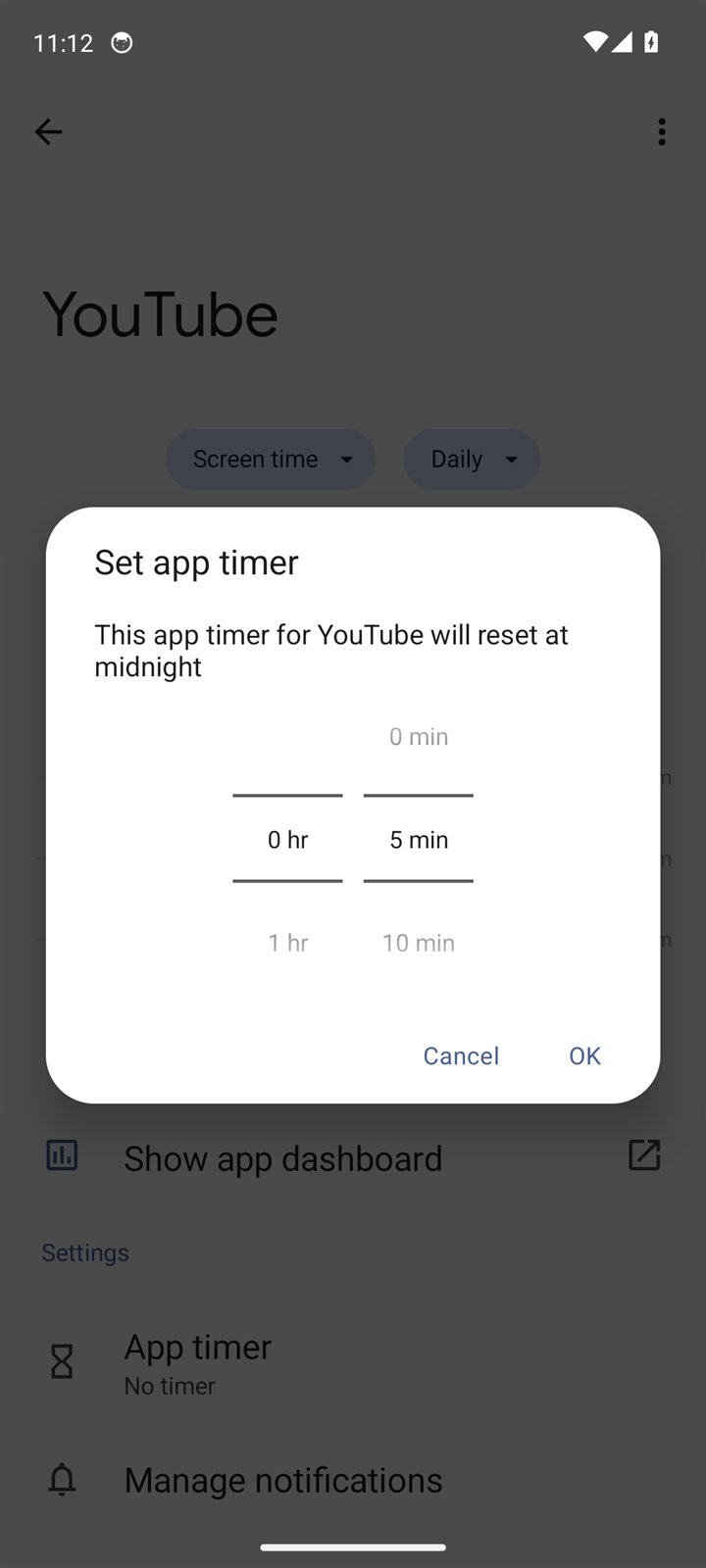
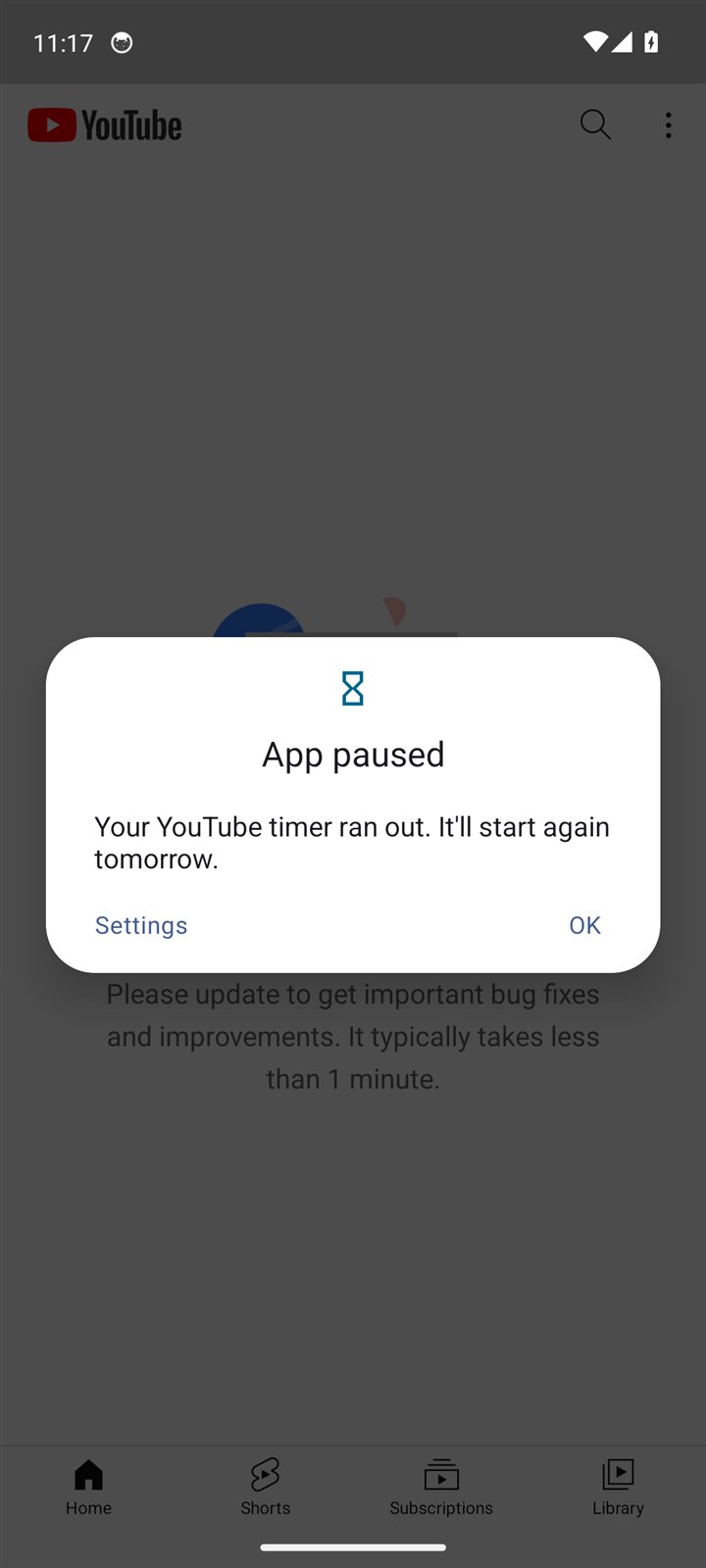
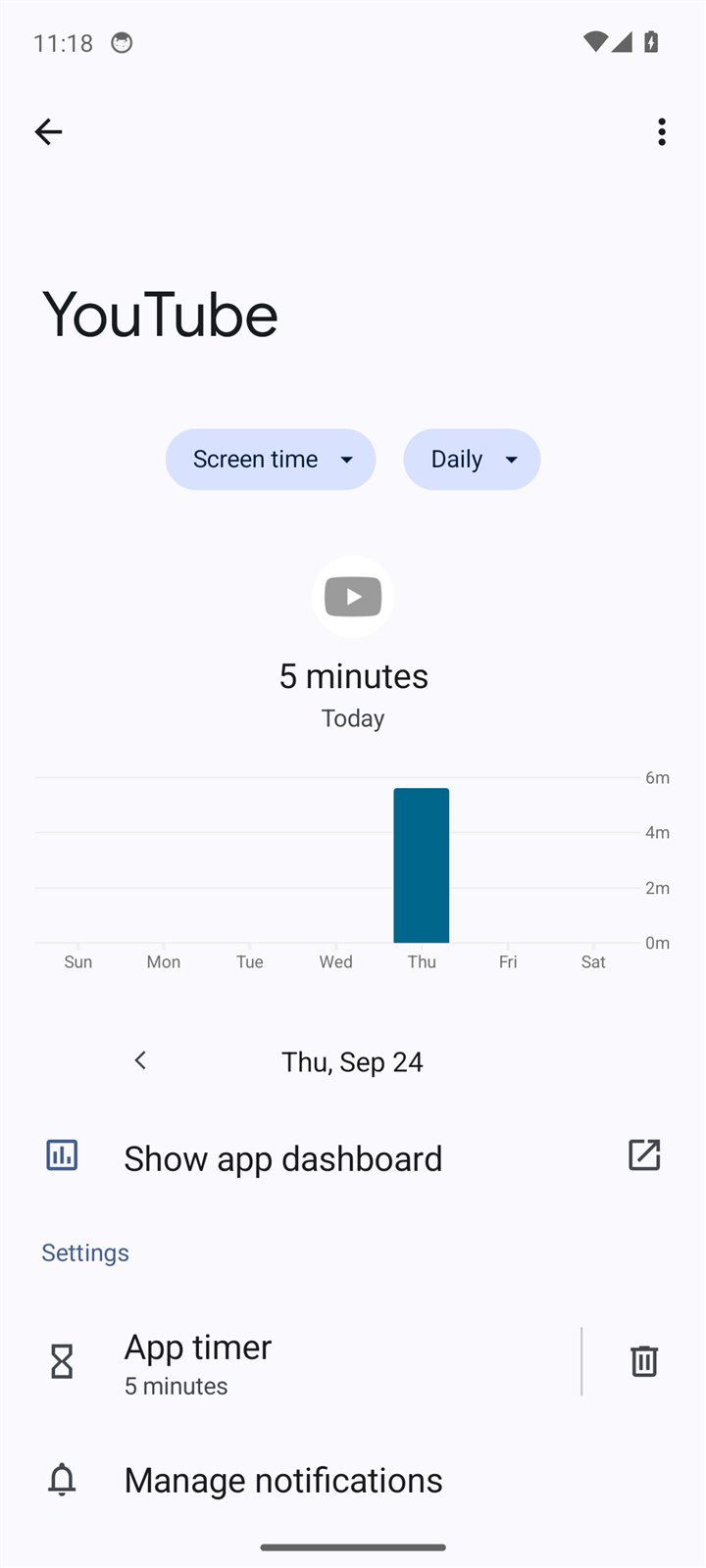
On the phone itself, Android's Digital Wellbeing shows screen time, unlocks and notifications, and its app timers close an app when time runs out: "When you run out of time, the app closes and its icon dims." Timers reset at midnight, and Google offers a PIN so that only someone who knows it can change them.
Two changes families should know about. First, turning 13 no longer ends a parent's controls on its own: Google now says children need a parent's approval to leave them until they turn 18. Many older articles still say otherwise. Second, purchase approvals have a boundary: "Family Link's purchase approval settings only apply to purchases made through Google Play's billing system."
Setting up a child's Android, step by step
Family Link for a child, in order
- Install Family Link on the parent's phone, and create or connect the child's Google Account.
- Set app approvals so every new app needs a parent's yes.
- Set Google Play content restrictions by age.
- Turn on Chrome's setting to hide explicit sites, knowing it is not perfect.
- Block browser apps you have not checked, so Chrome, where the setting lives, is the one the child uses.
- Set daily limits and a bedtime, per device.
- Decide whether you want location sharing, and talk to your child about it.
- Check it from the child's side: try an app install and an adult site.
We tested an Android app timer
On HigherLife's Android test phone (Google's Android 14, running on a computer), with no Family Link set up, we set a daily timer on YouTube and used YouTube until it ran out. The timer worked exactly as Google describes. It also showed why the PIN and Family Link matter: without them, the pause message leads straight to a delete button.
Where the controls reach, and where they stop
Parental controls are strongest close to the phone's own settings, and weaker the further you get from them. This drawing is the simplest way we know to explain it.
In more detail, from Apple's and Google's own pages:
- The main browser. Apple says its website approvals work "in Safari and other supported browser apps" (iOS 27). Google says its site settings apply "in Chrome and in some Android apps."
- Other browsers. A browser that does not support Apple's approvals is not covered by them. Google says that on an iPhone or a computer, a child "may also have access to other browsers where Family Link settings for Chrome won't apply." Blocking browser apps you have not checked closes much of this.
- Pictures inside ordinary sites. A site that is allowed shows whatever pictures it carries. "Limit Adult Websites" tries to keep out "detected adult websites"; Apple does not describe checking the pictures on the sites it lets through.
- Time. Apple's iOS 26 guide says: "By default, Screen Time limits can be ignored once reached." They hold firmly only with a Screen Time passcode set.
| Job | iPhone (Screen Time, iOS 27) | Android (Family Link and Digital Wellbeing) |
|---|---|---|
| Approve app downloads | Ask to Buy | App approvals |
| Limit daily time | Time Allowances | Daily limits (per device); app timers |
| No phone at night | Screen Time Schedules | Bedtime |
| Keep adult sites out of the main browser | Limit Adult Websites, or Approved Websites Only | Chrome's setting to hide explicit sites |
| Lock the settings | Screen Time passcode | Parent's account; App limits PIN |
"Screen Time is not working"
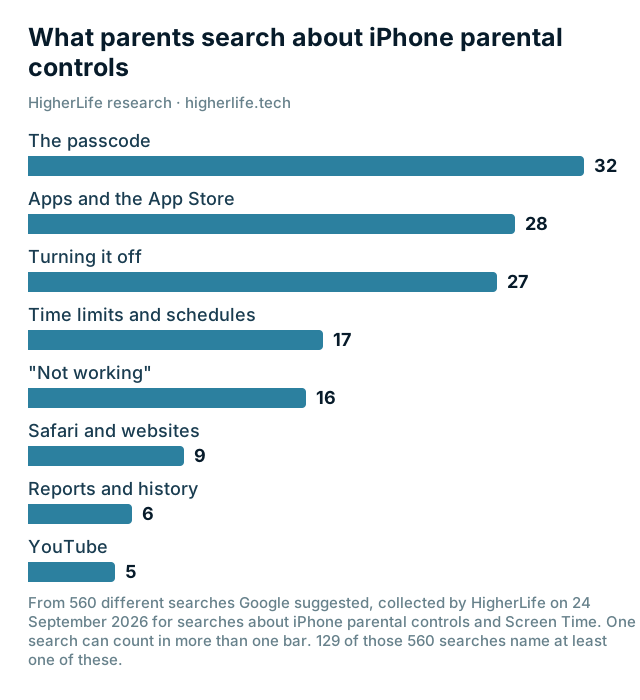
These are among the most common searches parents make, and a few causes explain most of them:
- Different software versions. Apple's redesigned controls need version 27 on every device in the Family Sharing group. A parent's older iPhone or iPad can make settings behave unexpectedly. Update everyone.
- No Screen Time passcode. Without it, limits can be ignored once reached, and settings can be changed from the child's phone.
- The limit was reached and then ignored. In iOS 26 and earlier, that is Apple's default, and Apple's guide explains that apps are fully blocked during Downtime only when a Screen Time passcode is set and Block at Downtime is turned on.
- The child found a way around it. Parents write about this often. We do not publish how. If settings keep changing, the lesson is usually that the key needs to be held somewhere the child cannot reach.
The passcode: the most searched problem of all
In our research into what parents search, the passcode came first, ahead of apps and "turning it off" (the chart above). Apple's own guide covers the three things parents need:
- Your child learned the passcode. Apple: "If your child figures out the passcode, you can change it at any time." From your own device, in your child's Screen Time settings: "Tap or click Manage Screen Time, then tap or click Change Screen Time Passcode."
- You think someone has been trying. Apple lets you "check when the passcode was last used, which can help you know if your child has been trying to change their settings." Look for "Last used" in the same place.
- You forgot it. When you set the passcode, Apple asks you to "set up passcode recovery with your Apple Account, so you can reset the passcode if you forget it." Do that on the day you set it, and keep your own Apple Account password where your child cannot find it.
For a child's first phone, our first-phone guide has an age-by-age plan; for Android families, see the kosher Android guide.
Which setup fits which age
| Age | Built-in controls alone? | The settings that matter most |
|---|---|---|
| Under 10, a shared or first device | Often enough, with an attentive parent | Approved Websites Only, Ask to Buy, Allowed Contacts, a schedule |
| 10 to 12 | Sometimes enough | All of the above, plus Communication Safety and a passcode the child never sees |
| 13 to 17 | Often not enough | Teens are the ones parents describe finding ways around settings |
| Adults who want a standard | Rarely enough | A passcode you set for yourself can be reset with your own account |
When built-in controls are not enough
You will know. The settings keep changing. You keep adding exceptions until the list means nothing. A teenager needs more of the phone than the controls can safely allow. Or you want your own phone held to a standard on the hard days, and you know that a passcode you can reset is not a lock.
At that point, families usually take one of three roads:
- Someone else holds the key. A spouse, a parent or a friend sets the Screen Time passcode and keeps it to themselves.
- A basic phone. For many children and some adults, the simplest answer is a phone that cannot do the things you worry about. Our guide to every kind of kosher phone compares them.
- A phone set up and kept by a service, so the standard holds and changes go through the account holder rather than the phone. Our twelve questions tell you what to ask any service first.
Questions people ask
Does Family Link work on an iPhone?
No. Google says Family Link cannot manage iPhones, iPads, or computers other than Chromebooks. A child's iPhone is managed with Apple's Screen Time through Family Sharing.
What happens on Family Link when my child turns 13?
Google emails the parent and the child, but the child now needs a parent's approval to leave a parent's controls until they turn 18. Older articles saying a 13-year-old can switch it off alone are out of date.
Can my child turn off Screen Time?
Not on their own, if a Screen Time passcode is set and the child does not know it. Without a passcode, limits can be ignored once reached and settings can be changed. Parents describe children finding ways around settings, which is why who holds the key matters so much.
What is the strictest setting on an iPhone?
Approved Websites Only, with Ask to Buy turned on, Allowed Contacts limited to contacts you approve, and a Screen Time passcode the child does not know.
What happened to Downtime and App Limits?
In iOS 27 Apple renamed them. Downtime is now Screen Time Schedules, and App Limits are now Time Allowances. The old names still apply to iOS 26 and earlier.
Can I block YouTube on my child's iPhone?
Yes. Block the YouTube app, and block the YouTube website in Safari, or use Approved Websites Only and simply do not approve it. Then check it from your child's side, and remember that no setting is perfect.
Does Apple see my child's photos when Communication Safety is on?
No. It runs on the child's device, and Apple says it "doesn't receive an indication that sensitive content was detected and doesn't get access to the photos or videos."
Are parental controls enough for a teenager?
Often not. Teenagers need more of the phone, and they are the ones parents most often describe finding ways around settings. Many families move to protection held by someone else at this age.
Sources
- Apple, What's new with parental controls in Screen Time and Family Sharing (iOS 27).
- Apple, Set up parental controls to manage your child's iPhone or iPad (iOS 27).
- Apple, Set Screen Time Schedules and Time Allowances (iPhone User Guide, iOS 27).
- Apple, Set schedules with Screen Time (iPhone User Guide, iOS 26).
- Apple, Block or allow access to apps and websites on your child's device.
- Apple, Block apps, app downloads, websites, and purchases (iPhone User Guide, iOS 26).
- Apple, Set, change, and manage a Screen Time passcode on your child's device.
- Apple, Check for sensitive images and videos on your child's device, and About Communication Safety.
- Google, Get started with Family Link.
- Google, How Google Accounts work when children turn 13.
- Google, Chrome and your child's Google Account.
- Google, Manage how you spend time on your Android phone with Digital Wellbeing.