YouTube Parental Controls: Shorts, Channels and Time Limits
YouTube's parental controls are spread across four tools: Restricted Mode, the YouTube Kids app, Google accounts a parent manages, and a Shorts limit for teens. Each covers part of the job and one account or app at a time. None of them, on regular YouTube, lets a parent choose the only channels that play. The phone's own settings add time limits but cannot look inside YouTube.
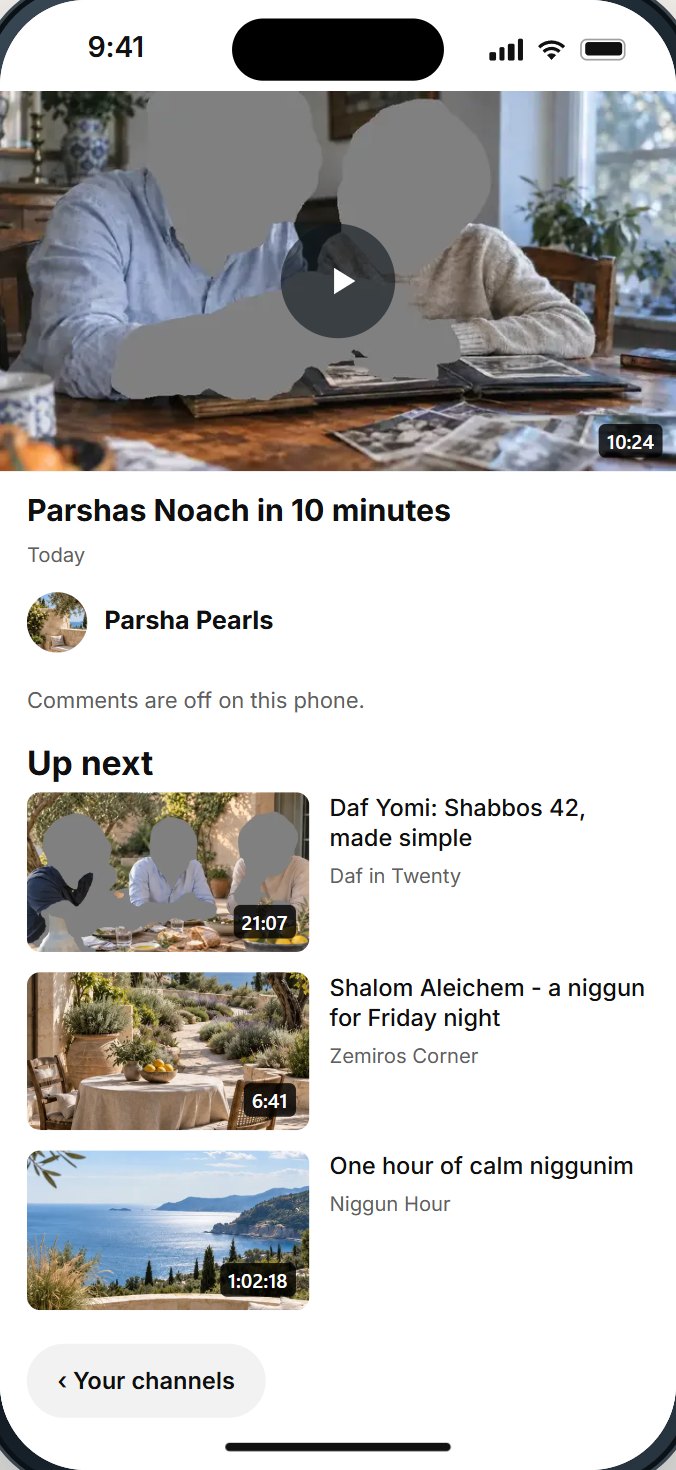
Every YouTube parental control, side by side
Parents often turn one of these on and assume YouTube is handled. It helps to see them together.
| Tool | Who decides what plays | Choose channels | Shorts | Time |
|---|---|---|---|---|
| Restricted Mode | YouTube's own rating | No | Not closed | No |
| YouTube Kids, by age level | YouTube, by age | Block channels | Its own app | A timer in the app |
| YouTube Kids, "approve content yourself" | The parent | Yes, hand-picked | Only what you pick | A timer in the app |
| A child's account a parent manages | YouTube, by a content setting | Block channels | Depends on the setting | Reminders |
| A teen's account a parent manages | YouTube | No | A daily limit, down to zero | Bedtime and break reminders |
| iPhone Screen Time | Not inside YouTube | No | No | Time Allowances and Schedules |
The pattern is clear: YouTube decides more often than the parent does, and each tool lives in one place. A child who opens YouTube on a different app, signed out, or inside another website, can step outside the setting.
Restricted Mode
YouTube describes Restricted Mode as "an optional setting that you can use on YouTube" which "can help screen out potentially mature content". It also says plainly that "the quality may vary". When it is on, comments are hidden. You turn it on in YouTube's settings, on each app and each browser where YouTube is used, unless an account or a network sets it for you.
Good for: a first layer on any device. Not good for: choosing what plays. Restricted Mode does not close Shorts or the suggestions beside each video, and a family's standard is often different from YouTube's rating.
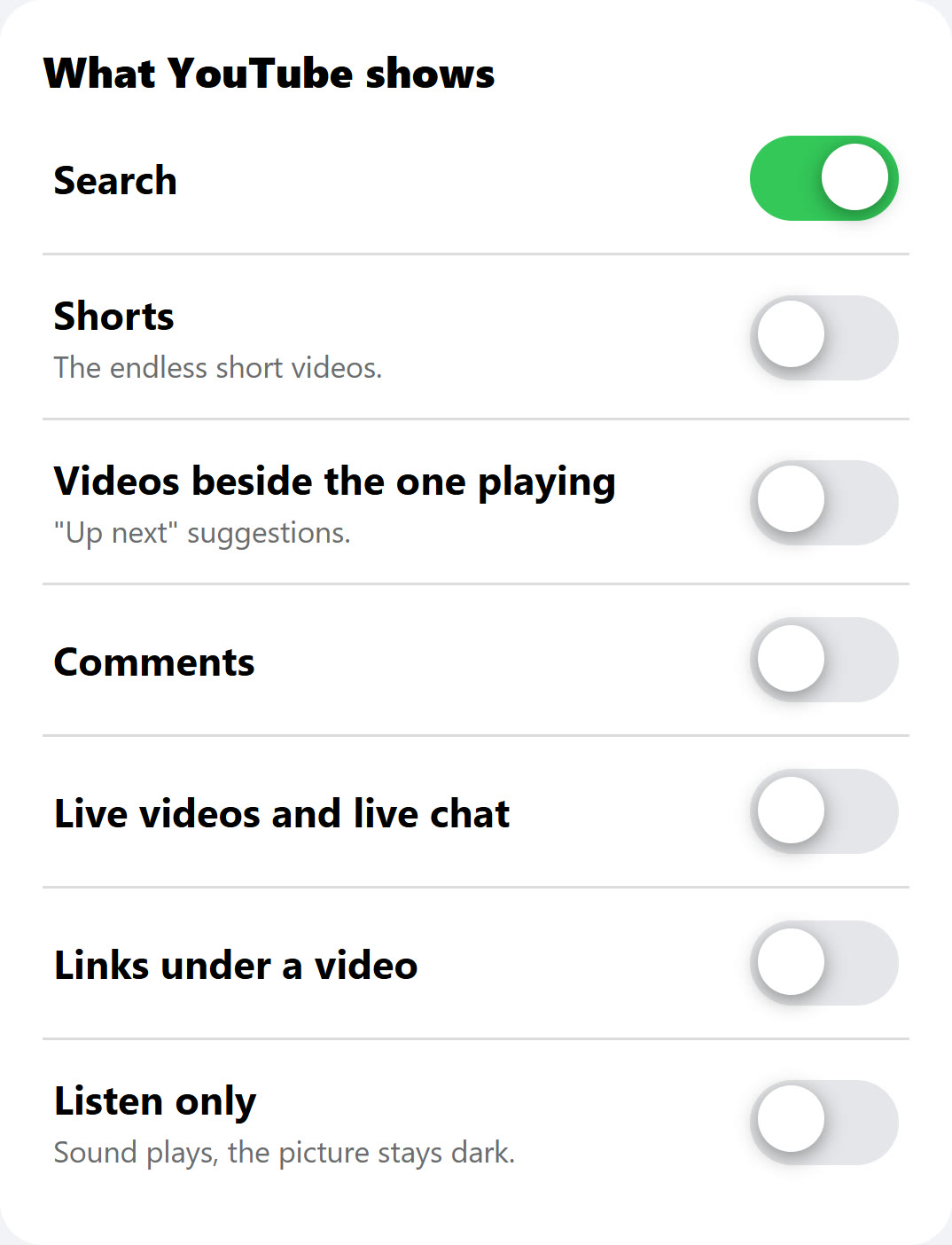
YouTube Kids
YouTube Kids is a separate app, which YouTube launched in February 2015. Parents choose a content level:
- Preschool: ages 4 and under.
- Younger: ages 5 to 8.
- Older: ages 9 to 12.
- Approve content yourself: your child "can only watch videos, channels, and collections that you've handpicked", and cannot search.
Parents can also block videos and channels. The approved-only setting is the closest YouTube comes to "only what I chose". Its limits: it is a separate app, built for children up to 12, and older children usually leave it for regular YouTube. Our guide to YouTube Kids or regular YouTube compares them in detail.
Accounts a parent manages
On regular YouTube, a parent can manage a child's Google account. YouTube's family page describes kid accounts for children under 13 and teen accounts for those over 13. For kid accounts, it says parents can block channels.
Two things to know before you rely on it. First, a managed account works when the child is signed in to it; a signed-out YouTube, or a second account, is outside it. Second, YouTube's own family page is frank that its automatic systems are not perfect and will sometimes get things wrong. A content level is YouTube's judgment, not the family's.
Time limits and Shorts
- Shorts for teens. In January 2026, YouTube said parents who manage a teen's account can set a daily Shorts limit "ranging from two hours to zero minutes"; zero blocks Shorts altogether. Parents can also set custom bedtime and "take a break" reminders, CNN reported.
- Shorts for everyone else. We found no YouTube setting that removes Shorts from a child's or an adult's YouTube outside those teen accounts.
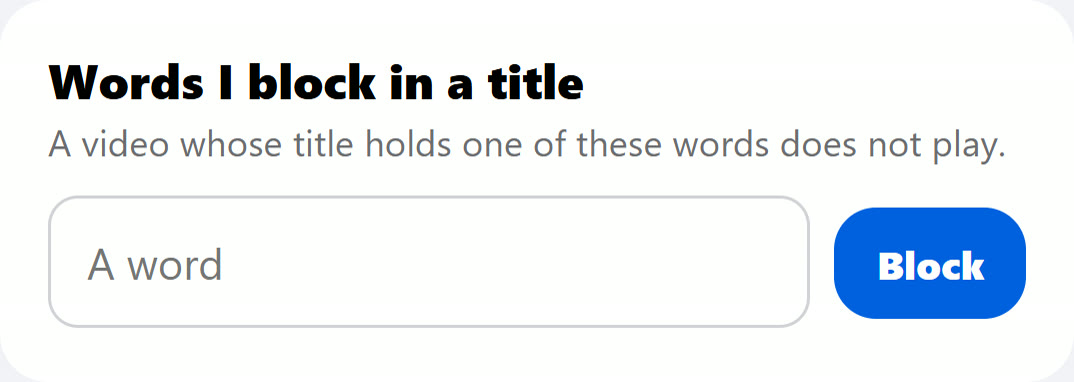
- The phone's own timer. Screen Time on an iPhone can set a daily limit on the YouTube app and keep it closed on a schedule. Apple notes that, by default, Screen Time limits can be ignored once reached; turn on blocking. Our own test on Android, in the clip above, shows the same lesson: when nobody holds a code, a timer can be deleted in one tap from the very message that announced it.
What is still missing
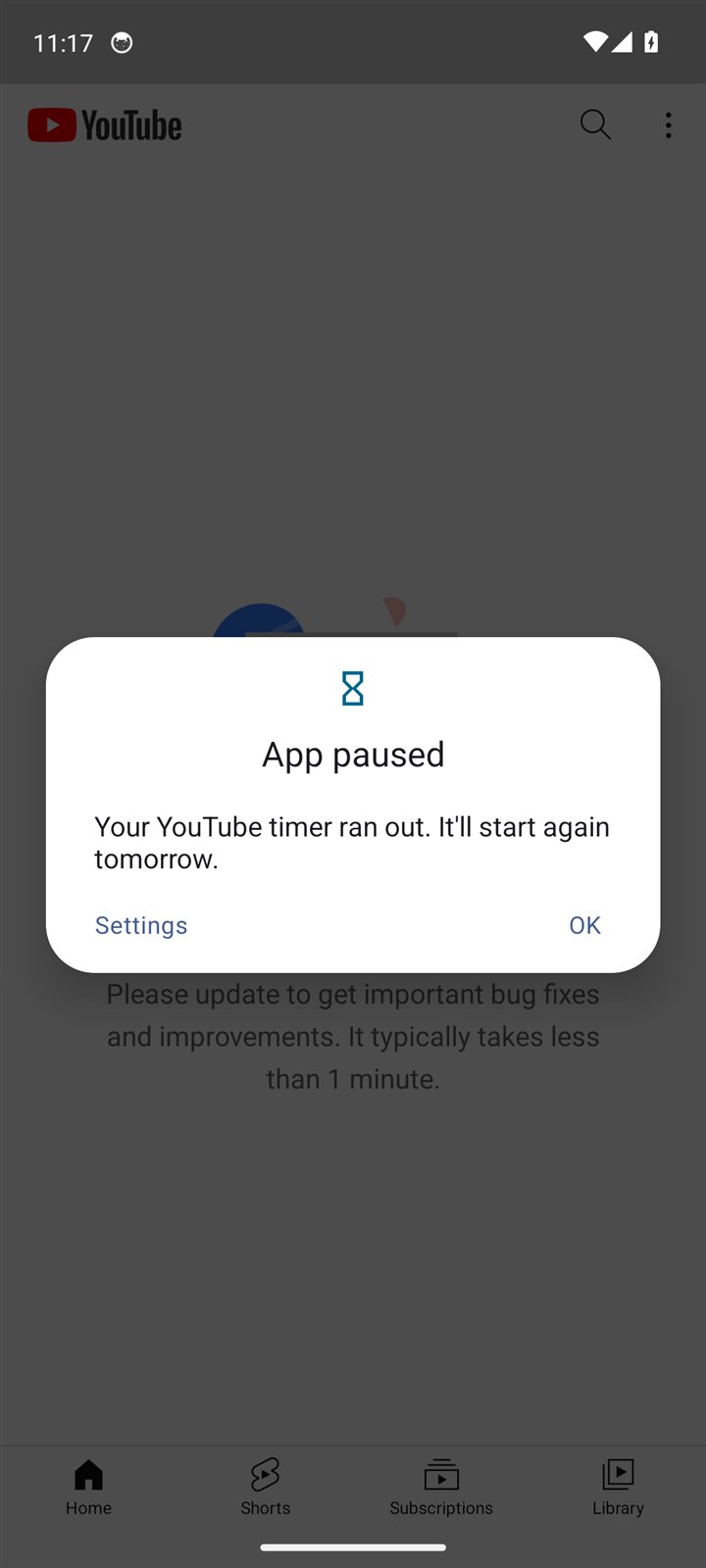
When parents describe what they want from YouTube, these come up again and again. On regular YouTube, YouTube's own tools do not offer them.
- Only the channels I choose, on regular YouTube. YouTube Kids has hand-picking; regular YouTube has blocking.
- A first screen without a feed. YouTube's home is built from recommendations.
- No suggestions beside the video. That is where one video becomes an hour.
- Shorts closed for everyone, not only for managed teen accounts.
- The same rules for YouTube videos placed inside other websites.
- A shiur with the picture dark. YouTube's own background play and audio-only choices come with its paid plan.
- Rules the child cannot change. Settings in an app the child holds can be changed by the child.
A sensible setup with YouTube's own tools
- For a child under 9: YouTube Kids with "approve content yourself", and a short list you built together.
- For ages 9 to 12: a kid account a parent manages, or YouTube Kids at the Older level, with channels you know blocked or approved.
- For teens: a teen account a parent manages, the Shorts limit at zero, and bedtime reminders.
- On every device: Restricted Mode on, and Screen Time limits with blocking turned on, and a passcode only you know.
- Talk about why. The settings hold best when the child knows what they are protecting.
Questions people ask
Does YouTube have parental controls?
Yes, in four places: Restricted Mode, the YouTube Kids app, Google accounts a parent manages, and a Shorts limit for teen accounts. Each covers part of the job.
How do I block Shorts on YouTube for my child?
For a teen account a parent manages, set the daily Shorts limit to zero. For other accounts we found no YouTube switch that removes Shorts; a setup a parent controls from outside the app can close them.
Can I block specific YouTube channels?
Yes, in YouTube Kids and in kid accounts a parent manages. A setup a parent controls can also block channels and words in titles on regular YouTube.
Can I allow only certain channels on regular YouTube?
Not with YouTube's own tools: hand-picking is a YouTube Kids feature. A setup a parent controls can play only the channels on your list.
Can I set a time limit on YouTube?
Yes. Screen Time can limit the YouTube app; turn on blocking at the end of the limit and keep the passcode yourself. YouTube also offers break and bedtime reminders, which are reminders, not locks.
Do YouTube's parental controls work on a TV?
YouTube's family page says managed accounts work across the app, the website, smart TVs and game consoles, when the child is signed in. Check each device the child uses.
Does Restricted Mode hide comments?
Yes. YouTube says that when Restricted Mode is on, you cannot see comments on the videos you watch.
Which YouTube parental control is best?
It depends on the child. For a young child, YouTube Kids with content you approve yourself. For an older child or a teen, a managed account plus the Shorts limit, with Restricted Mode as a floor. For any age, the question to ask is the same: does the parent choose what plays, or does someone else?
Can my child turn the controls off?
Settings inside an app the child holds can often be changed, or left behind by signing out. Ask any setup who can change it, and whether it holds when YouTube is opened another way.
Sources
- YouTube Help, Turn Restricted Mode on or off: "an optional setting", "the quality may vary", comments hidden.
- YouTube Kids Help, Content settings: Preschool, Younger, Older, approving content yourself.
- YouTube, YouTube for families: ages for each YouTube Kids level; blocking videos and channels; kid and teen accounts a parent manages; smart TVs and consoles.
- YouTube Official Blog, February 2015 posts: introducing YouTube Kids (February 23, 2015).
- CNN, via KVIA, YouTube will let parents stop their teens from endlessly scrolling short videos (January 14, 2026).
- Fox News, YouTube lets parents limit or block Shorts for teens (January 30, 2026).
- Apple, Set schedules with Screen Time (iPhone User Guide).
- YouTube, Terms of Service: age requirements.
- YouTube Help, YouTube Premium benefits: background play: background play "on YouTube mobile apps when you’re signed in with your YouTube Premium membership account".