How to Make a Windows Computer Kosher
A kosher computer keeps everything the family needs, Word, schoolwork, Zoom and files, and changes only the way it reaches the web. On Windows that means four things: one browser that checks every page, every other browser kept shut, every link from email and documents opening in that browser, and nothing taken off the computer. Ask any company, or any free setting, how it handles all four.

Why the computer matters as much as the phone
Most of the conversation in our community is about phones, and for good reason. But the computer at home is often the open window nobody is watching. Pew Research Center found in 2024 that 88% of American teens have or can use a desktop or laptop computer at home. In Israel, the Israel Democracy Institute found that ultra-Orthodox adults who go online connect mainly through a home computer (42%) rather than a mobile phone (30%).
A computer is also harder to simply take away. It holds homework and the school's portal, the family's photos, a parent's work, the bank statements, the Zoom shiur and the Word document for a simcha. A phone can be swapped for a simpler phone. A computer usually cannot. So the real question is not whether the computer stays, but how it reaches the web.
That shapes the whole approach. A kosher computer is not an empty computer. It is the same computer, with every program and file in place, where the web arrives through one door the family trusts.
The four ways the web reaches a Windows computer
When families ask us what to worry about on a computer, they usually name one thing: the browser. On Windows 11 there are four ways the web arrives, and a setup that covers only the first leaves the other three open.
- The browser it came with. Every Windows 11 computer arrives with Microsoft Edge on the desktop and pinned to the taskbar, one click from anything.
- A new browser. Any other browser is a free download that takes less than a minute. A setup that watches one browser and not the next is a setup that lasts until someone downloads the next.
- The Start menu search. Type a word into the search box on the taskbar and Windows offers web results beside the files and programs it finds. One click on a web result opens it.
- Links inside everything else. A link in an email, a Word file, a PDF or a chat opens in whichever browser the computer uses for links. This is the one most families never think about, and it is the one the whole family uses every day.
Keep these four in mind as you read about each option below. The honest test of any setup, free or paid, is what it does about all four.
What Microsoft's own tools do
Microsoft's free answer is Microsoft Family Safety. From Microsoft's own help pages:
- A family group. An organizer signs in at Microsoft's family page and builds a family group. Microsoft describes a family group as "a set of individuals connected through the Microsoft Family Safety app."
- Web settings work in Edge. To block mature sites, Microsoft says a parent turns on its setting for inappropriate websites, which "enables the supported browser (currently Edge) to block mature content." In other words, the protection lives in one browser, Microsoft's own.
- Other browsers are blocked, by hand reversible. When those settings are on, Microsoft says "unsupported browsers are blocked; you can manually unblock a browser on the device."
- Each person signs in. Microsoft says family members "must use a supported browser while signed in to their Microsoft accounts." The settings follow a family member's own Microsoft account.
- Screen time and apps. The same family group can set screen time limits and block apps and games across Windows, Xbox, Edge and mobile devices.
For a young child with a parent who checks in, this is a real start, and it costs nothing. Its limits come from its design. It is built around each child's own Microsoft account, so a computer the whole family shares under one sign-in, or an adult's own sign-in, sits outside it. It is built around one browser. And it is a set of settings a family manages, not a setup someone looks after for you.
What Google's own tools do on a computer
Many families already use Google's Family Link on a child's phone and assume it reaches the computer too. Google is direct about it: Family Link does not manage computers other than Chromebooks. Its settings for Chrome follow the child's Google account, and Google's own help page adds that a child "may also have access to other browsers where Family Link settings for Chrome won't apply."
Google's SafeSearch is worth knowing either way. Google says "You can block inappropriate content when you use Google search with SafeSearch," and that "Parents or schools can lock SafeSearch." It covers Google's search results. It does not cover a site someone types in directly, or a search on another engine.
Neither of these is a criticism. Both companies build tools for millions of families of every kind. A Torah home usually asks for more than a general-purpose tool was designed to give.
Three ways to make a Windows computer kosher
1. A computer sold already locked down
Some stores sell laptops prepared for a Torah home, with a restricted system on them from the start. The appeal is simplicity: you buy it, it arrives ready. The questions are the ones you would ask of any closed device. Which programs can you add later? What happens to the work and files you already have on your current computer? Who do you call when school sends a program it does not allow, and how long does an answer take?
2. Protection added to the computer you own
The second road keeps the computer you already have and adds protection to it. Done well, this is the road that changes the least: the same desktop, the same programs, the same files, with the web arriving one way. Done badly, it is a program that slows the computer, blocks the school portal on a Sunday night and can be closed from the corner of the screen. The difference is in the details, which is why the checklist below exists.
3. Microsoft's own tools
Microsoft Family Safety, described above, is free and already built in. For a young child with an attentive parent and their own Microsoft account, it can be the right first step. It asks more of the family the older the children get, and it does not reach a shared sign-in or an adult's own account.
Keep the computer, change the browser
Our view, after setting up many phones and now computers: the best kosher setup is the one you hardly notice. You should not lose a program, a file or a setting. Nobody should be signed out in the middle of their work. The computer should not have to restart. The only thing that changes is how the computer reaches the web.

Here is what that looks like on a Windows computer with HigherLife, the same promise we make on a phone:
- Every other browser stays shut. Edge, Chrome, Firefox and the other well-known browsers do not open, even a copy saved under a new name. Their icons are gone from the desktop, the Start menu, the taskbar and the search box.
- The Start menu stops opening the web. A search finds your files and programs, not web pages.
- Every link opens in HigherLife. From Outlook, Word, a PDF or any other program, for everyone who signs in to the computer.
- Every page is checked. Adult sites never open, on any plan.
- Everything that is yours stays yours. Your desktop, files, Word, Zoom, games and Remote Desktop stay exactly where they were. Nothing is erased.
We care about the last point as much as the first. A setup that takes over the whole computer to protect the browser asks the family to give up too much, and a family that gives up too much looks for a way back.
The question most families forget: links
Ask a family how the web gets onto their computer and they will point at the browser icon. Watch the same family for a day and most of their web pages start somewhere else: a link in an email from school, a link inside a Word file, a link in a PDF, a link in a message. Each one opens in whichever browser the computer uses for links.
So the link question is the one to ask first. If a setup protects one browser but links still open in another, the protection is only as strong as the family's habit of never clicking a link. With HigherLife, links open in HigherLife for everyone who signs in to the computer, including a person who signs in for the first time later on. Nobody has to remember anything.
Pictures, searches and Torah first
Keeping adult sites out is the floor, not the goal. Most of what a family sees on an ordinary day is ordinary: news, shopping, a recipe, a school site, a search. That is where pictures and search results matter.
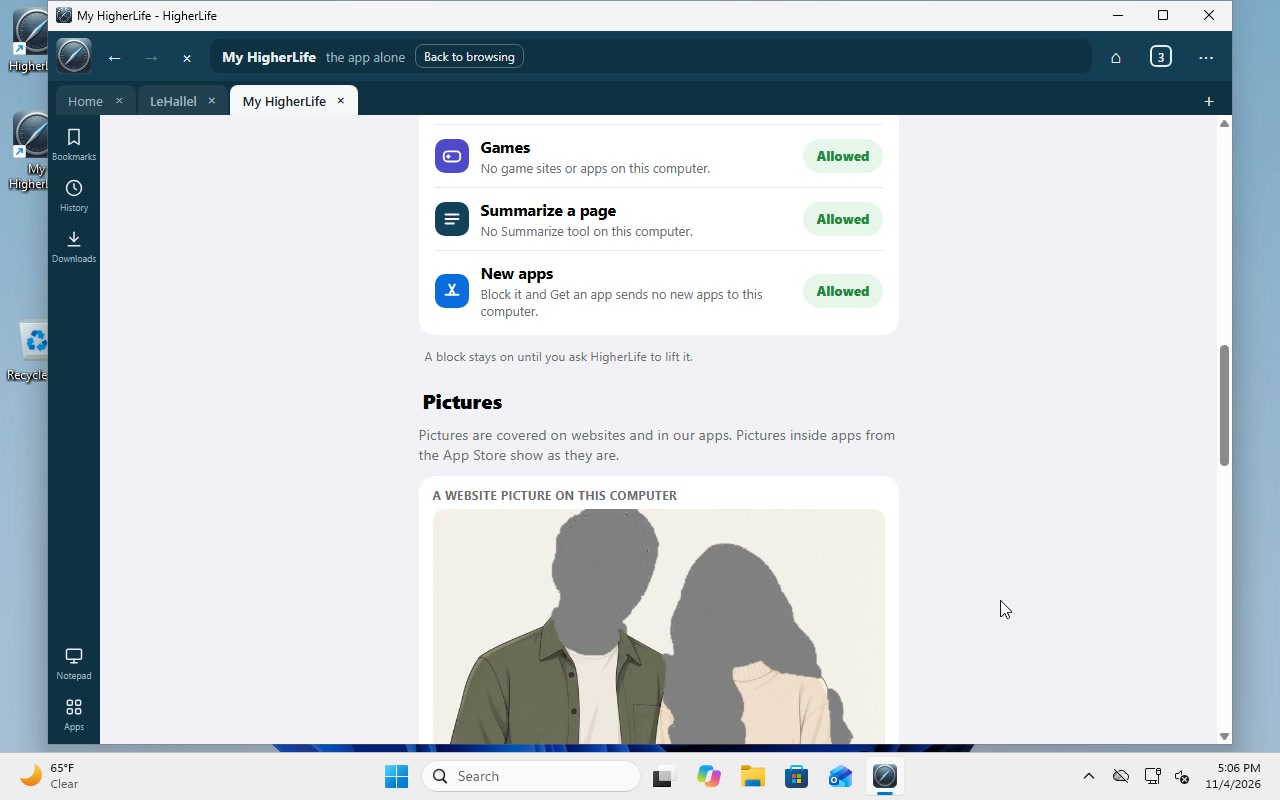
- Google stays on SafeSearch. Explicit results stay out of Google, and the setting cannot be switched back by someone at the keyboard.
- Pictures are shaded. With the picture choice on, people in pictures on websites are shaded, while the beach, the food and the scenery stay.
- Torah comes first. LeHallel, with Torah videos, shiurim and a library of sefarim, is built right into the HigherLife browser.
- Gmail, YouTube and WhatsApp Web open inside the HigherLife browser, with our rules on each page.
When something is blocked that you need
Every protected computer will, sooner or later, block something someone needs: a school program, a work site, a form. What happens next decides whether the protection stays. A setup that leaves you waiting a day for an answer is a setup that gets removed by the end of the week.
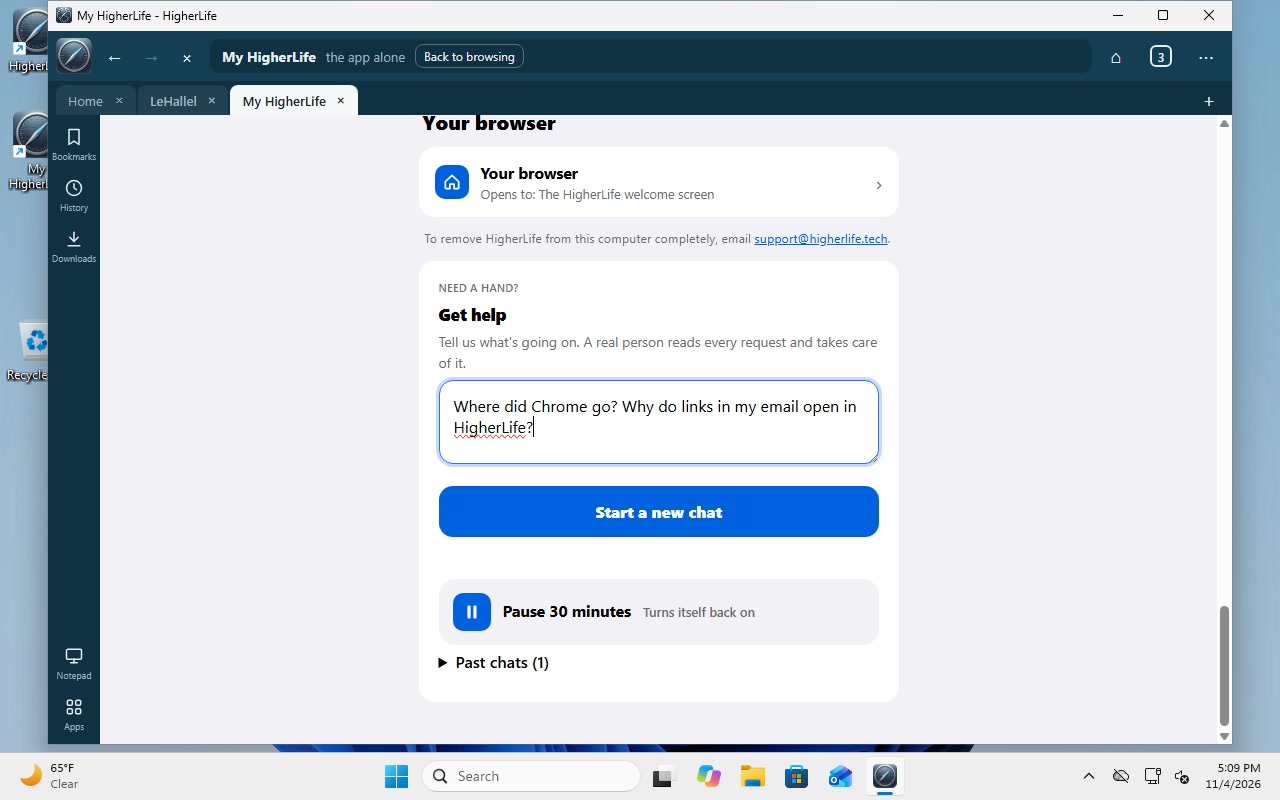
On a HigherLife computer, My HigherLife sits on the desktop and the taskbar. It shows the protection, the plan, how pictures are shaded and a 30-minute pause that turns itself back on. Ask a question there and our support team answers within a minute, about this very computer: what is blocked, why, and how to bring back what you need. When we asked "Where did Chrome go?" on our test laptop, the answer explained what had changed on that computer, in the same minute.
One computer, the whole family
Most homes have one family computer, or a laptop that moves between a parent's work and a child's homework. That changes what to ask.
- Who does it cover? Protection that follows one child's account leaves the shared sign-in and the adults' sign-ins open. Protection that covers the computer covers everyone who signs in, including a guest.
- Does it cover programs, or only the browser? Some programs open their own web window inside them, a chat program, a meeting program or a game's store. Ask any company exactly what it covers beyond the browser, and decide with the answer in hand.
- Where does the computer live? Many families find that the most effective rule costs nothing: the computer stays in the kitchen or the living room, not behind a closed door.
- What does the halacha ask of your home? Families and communities draw these lines differently. For the questions of halacha, ask your rav.
The ten-question computer checklist
| # | Ask | Why |
|---|---|---|
| 1 | Does it keep my computer, my programs and my files exactly as they are? | It decides what you might lose, and whether the family accepts it. |
| 2 | What happens to the other browsers, including one downloaded tomorrow? | Protection that watches one browser lasts until the next download. |
| 3 | Where do links from email, Word and PDFs open? | Most web pages on a family computer start as a link. |
| 4 | Does the Start menu search still open the web? | It is the quietest way in on Windows 11. |
| 5 | Does it cover everyone who signs in, or one account? | A shared computer has more than one sign-in. |
| 6 | Exactly what does it cover beyond the browser? | Some programs open their own web window. |
| 7 | Who can undo it, and how? | Protection the person at the keyboard can remove will be removed on a hard day. |
| 8 | Will anyone be signed out, or will the computer restart? | Work and schoolwork should never be lost to a setup. |
| 9 | When something I need is blocked, how fast do I get an answer? | A day without the school portal ends most setups. |
| 10 | What does a whole year cost, with nothing extra? | Compare the full year, not the first month. |
When a locked-down computer is the better choice, and when it is not
We set up computers, and we would rather you choose well than choose us.
- A first computer for a young child. A computer that only ever does a few things, bought for that purpose, can be the simplest answer. Microsoft's own Family Safety, with a child's own account, can also be enough at that age.
- A computer used only for one program. If the computer exists for one job, a device built for that job may suit you better.
- The computer you already rely on. If it holds the family's work, schoolwork and files, keeping it and changing only the web is usually the cheapest and least disruptive choice.
- A family that shares one computer. Protection that covers the computer, not one account, fits the way most homes really use it.
Questions people ask
What is a kosher computer?
A computer that keeps everything the family needs, programs, files and schoolwork, and reaches the web only through a browser that checks every page. It can be a computer sold already locked down, protection added to the computer you own, or Microsoft's own Family Safety.
Can I make the laptop I already own kosher?
Yes. Protection can be added to a Windows computer you already own. Ask first whether anything is erased, whether anyone is signed out, and which programs stay exactly as they are.
Is Microsoft Family Safety enough?
For a young child with their own Microsoft account and a parent who checks in, it is a real start. Microsoft says its web settings work in Edge and follow a family member signed in to their own Microsoft account, so a shared sign-in or an adult's own account sits outside them.
How do I keep other browsers off a Windows computer?
Microsoft Family Safety blocks browsers other than Edge for a family member's own account, and Microsoft says a browser can be unblocked by hand on the device. HigherLife keeps every other browser shut for everyone who signs in, and hides their icons.
Will links in my email still work?
They should, and they should open somewhere safe. Ask any setup where links from email, Word and PDFs open. With HigherLife, every link opens in the HigherLife browser.
Does Google Family Link work on a Windows computer?
No. Google says Family Link does not manage computers other than Chromebooks, and that a child may have access to other browsers where its Chrome settings do not apply.
Will a kosher setup slow my computer down?
It should not. Ask any company what it adds to the computer and how it treats the programs you already use. HigherLife changes only the way the computer reaches the web.
Is a protected computer enough for a Torah home?
Families and communities answer this differently, and it depends on the home and the children. For the halachic questions, ask your rav.
Sources
- Microsoft Support, Web and search settings in Microsoft Family Safety.
- Microsoft Support, Set up Microsoft Family Safety.
- Google, Get started with Family Link (Google For Families Help).
- Google, Chrome & your child's Google Account (Google For Families Help).
- Google, Make Google Search safer with SafeSearch (Google Search Help).
- Pew Research Center, Teens, Social Media and Technology 2024, 12 December 2024.
- Israel Democracy Institute, Two Thirds of Ultra-Orthodox Are Online, 30 December 2021.